

Dual Monitor Mastery: Troubleshooting HDMI Connections on Laptop Docking Stations with Visual Feedback


Those little lights on your docking station are not just for show. When your second monitor fails to come on or when you see dreaded "no signal" flashes on its screen, you can use these lights to reveal to you where you need to investigate to solve your problem. Most dual monitor frustrations stem from issues you can diagnose in seconds if you know what those blinking lights mean. This troubleshooting approach transforms a potentially complicated tech problem into a straightforward detective game where your laptop docking station literally shows you where to look.

Laptop Docking Station Requirements for Dual Monitors
Not every docking station handles dual monitors the same way. Before diving into troubleshooting, you need to know if your setup can even support two external displays.
Video Output Capabilities
Your laptop docking station needs at least two video output ports for dual monitor setups. Most modern docks feature multiple HDMI ports, though some mix HDMI with DisplayPort or USB-C connections. The key factor is total bandwidth. Modern HDMI 2.0 ports support 4K at 60Hz, which handles most dual monitor setups smoothly. Older HDMI 1.4 may struggle with 4K displays, while newer HDMI 2.1 offers higher refresh rates for gaming setups. Check your dock's specifications to understand its capabilities.
Laptop Compatibility Factors
Your laptop itself plays a crucial role. Some laptops support Multi-Stream Transport (MST), a technology that allows multiple monitors through a single connection to your laptop docking station. Windows laptops typically support MST and can display different content on each external monitor. MacBooks handle dual monitors differently. While you can connect two external displays through a dual monitor docking station, both external monitors will show identical content in either mirror mode or extend mode. For MacBook users, both external monitors will display the same content in extend mode, creating a larger unified workspace. This works well for presentations or when you need consistent views across displays. Your laptop's graphics processor also determines how many external displays it can drive simultaneously.
What Your Dock's HDMI Indicator Lights Mean
Every laptop dual monitor docking station uses indicator lights to communicate its status. Learning this visual language saves hours of guesswork.
Standard Light Patterns
Most docks follow similar indicator conventions. A solid green or blue light typically means that the HDMI port is actively transmitting a video signal to a connected monitor. No light usually indicates that no cable is detected or the port isn't receiving power. A blinking or amber light suggests the dock detects something connected but can't establish a proper signal. These lights appear next to each HDMI port, letting you check both connections independently.
What Different Colors Signal
Green or blue lights mean everything's working correctly. The HDMI port sees your monitor, negotiates a resolution, and sends picture data. Amber or orange often indicates a partial connection. The dock sees your cable but can't complete the handshake with your monitor. Red lights flag serious problems like overheating, power issues, or hardware failures. A completely dark indicator when everything's plugged in points to cable problems or dead ports.

Fix "No Signal" on Dual Monitor Docking Station
"No signal" messages are the most common dual monitor complaint. Your dock's indicators help pinpoint exactly where things break down.
Check Physical Connections First
Start with the obvious culprits. Look at your laptop docking station's HDMI indicators. If both lights are off, your laptop might not be properly connected to the dock itself. Verify the dock's main cable is fully seated in your laptop and that the dock has power. If one light shows green while the other stays dark, focus on that dark port:
- Unplug and firmly reconnect the HDMI cable at both ends
- Swap the HDMI cables between monitors to test if one cable is faulty
- Try the working monitor's cable in the non-working port
Physical connection issues cause most "no signal" problems.
Verify Monitor Power and Input Selection
Your monitor needs to be on and set to the correct input. Check that your monitor's power light is on. Then use the monitor's input button to cycle through available inputs. Some monitors auto-detect signals, but others need manual switching to HDMI 1 or HDMI 2. If your laptop docking station indicators show solid lights but your monitor still says "no signal," the monitor itself is likely the issue.
Update Display Drivers
Outdated graphics drivers frequently cause dual monitor recognition failures. Windows users should visit Device Manager, expand Display Adapters, right-click their graphics card, and select Update Driver. Mac users can check System Settings for software updates. After updating, restart your computer completely with everything still connected to your laptop dual monitor docking station.
Troubleshoot HDMI Connection Issues with Dock Indicators
Beyond basic "no signal" problems, dual monitor setups can develop subtler issues. Your dock's visual feedback helps diagnose these too.
One Monitor Works, One Doesn't
When HDMI 1 shows solid green, but HDMI 2 won't light up, you've isolated the problem to that second connection. Try connecting your working monitor to the non-working port. If it works there, your second monitor or its cable has issues. If it doesn't work, that HDMI port on your docking station might be faulty. Most modern docking stations automatically enable both HDMI ports when monitors are connected.
Flickering or Intermittent Connections
Blinking indicator lights alongside the screen flickering point to unstable connections. Your HDMI cable isn't fully inserted, is damaged internally, or is too long for the signal strength. HDMI signals degrade over distance, and low-quality cables may cause connection issues. Replace cables showing this behavior for better dual monitor docking station performance.
Resolution and Refresh Rate Problems
Your laptop dual monitor docking station might light up green, showing active connections, yet your monitors display incorrectly. One screen might look blurry while the other appears sharp. Advanced docking stations with LCD displays make diagnosis easier. The MOKiN 13-IN-1 USB-C Laptop Docking Station shows real-time resolution and refresh rate for both HDMI ports on its built-in screen, so you can instantly see if your system is sending the correct settings. Open your display settings and match each monitor to its native resolution for best results. Remember to match each monitor to its native resolution for best results.

Extended Display Mode Not Working
Windows users should press Windows + P to bring up projection options and select Extend. Mac users need to open System Settings, navigate to Displays, and arrange their monitors. For MacBook users with dual external monitors, both external displays will show identical content. If you need independent content on each monitor, you'll need to use your MacBook's built-in screen as one display and one external monitor.
Cable Quality Matters
The performance of HDMI cables varies. Even though your dock's indications indicate strong connections, a bad cable might still weaken the signal. HDMI cables that are longer than six feet ought to be premium or high-speed certified cables. Using two cables of the same grade for dual monitor docking station setups keeps one monitor from operating differently from the other.
The table below shows how cable quality affects dual monitor performance:
| Cable Type | Best For | Dual Monitor Reliability |
| Basic HDMI cables | 1080p displays, short distances | May have issues |
| Quality HDMI cables | 4K displays at 60Hz | Reliable |
| Premium certified cables | 4K high refresh rate, long runs | Excellent |
Choose your cables based on your monitor specifications and distance requirements for consistent performance.
Master Your Dual Monitor Experience
Your laptop docking station's indicator lights are there to help, not confuse. By reading these visual cues and methodically checking connections, you can resolve most dual monitor issues without tech support. Start with the lights, verify physical connections, and work through settings systematically. Keep quality cables on hand, know your hardware's capabilities, and remember that those small LEDs tell you exactly what's happening. Ready to eliminate your display frustrations? Let your dual monitor docking station show you the way forward.
FAQS
Q1. Can a Laptop Docking Station Support Different Monitor Brands for Dual Display?
Yes, your dual monitor docking station works with any monitor brand as long as the monitors have HDMI inputs. The dock doesn't care about monitor manufacturers. However, mixing different resolutions or refresh rates between brands can sometimes cause Windows or macOS to struggle with optimal settings.
Q2. Why Does My Second Monitor Show Lower Resolution Than the First?
Your laptop docking station or graphics card lacks enough bandwidth to drive both monitors at their highest settings simultaneously. To keep connections steady, your system automatically lowers the resolution on one display. Consider switching to a dock with more bandwidth HDMI connectors or reducing the frame rate on both monitors.
Q3. Do Both Monitors Need the Same Type of HDMI Cable?
Using identical connection types in your laptop dual monitor docking station setup guarantees constant performance across both displays, it's not absolutely necessary. One monitor may function flawlessly while the other has problems due to mismatched cables with differing capacities. Quality is more important than brand matching.
Q4. Will My Laptop Docking Station Work If My Laptop Screen Stays On?
Most laptop dual monitor docking station configurations allow your laptop screen to remain active as a third display. But more graphics processing power is needed for this. Closing your laptop's lid or turning off the display in the settings will greatly enhance the performance of your dual external monitors if you're having performance problems.


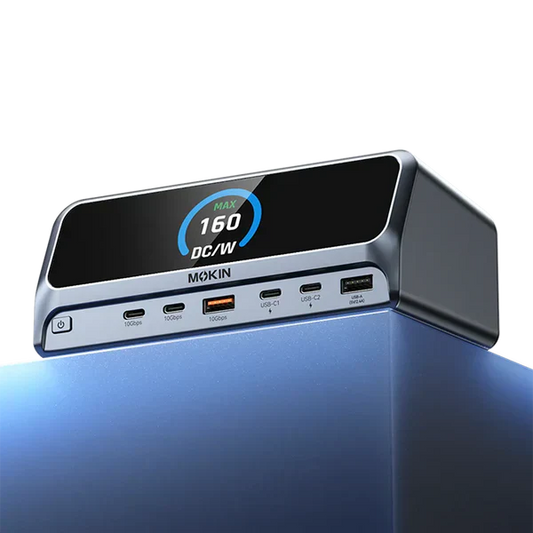

MOKiN 13-IN-1 USB-C Laptop Charging Station with 2.26-inch LCD Smart Display

MOKiN 140W Laptop Charger(4-Port,PD3.1) with Smart Display
